On this page
- What is a GitHub SSH key?
- Step 1: Check that OpenSSH is installed
- Step 2: Create the key
- Step 3: Turn on the ssh-agent service
- Step 4: Copy the public key
- Step 5: Add the GitHub SSH key to your account
- Step 6: Test the connection
- Step 7: Make Git use the Windows SSH
- Switch an existing repo from HTTPS to SSH
- Why does GitHub say "Permission denied (publickey)"?
- Next steps
Quick answer
Run ssh-keygen -t ed25519 -C "you@example.com", enable and start the ssh-agent service in an admin PowerShell, ssh-add your key, paste the .pub file into GitHub → Settings → SSH and GPG keys, then test with ssh -T git@github.com.
A GitHub SSH key lets you push and pull without typing a password or token every time. Windows 11 already includes everything you need, but two Windows-only details trip people up: the ssh-agent service is disabled out of the box, and Git for Windows uses its own copy of SSH. This guide covers both. The commands were checked on Windows 11 with OpenSSH 9.5 and follow GitHub's official steps.
What is a GitHub SSH key?
A GitHub SSH key is a pair of files: a private key that stays on your PC and a public key you give to GitHub. When you push, your PC proves it holds the private key, so GitHub knows it's you without a password. Never share the private key; the public key (ending in .pub) is safe to share.

Step 1: Check that OpenSSH is installed
Open PowerShell and run:
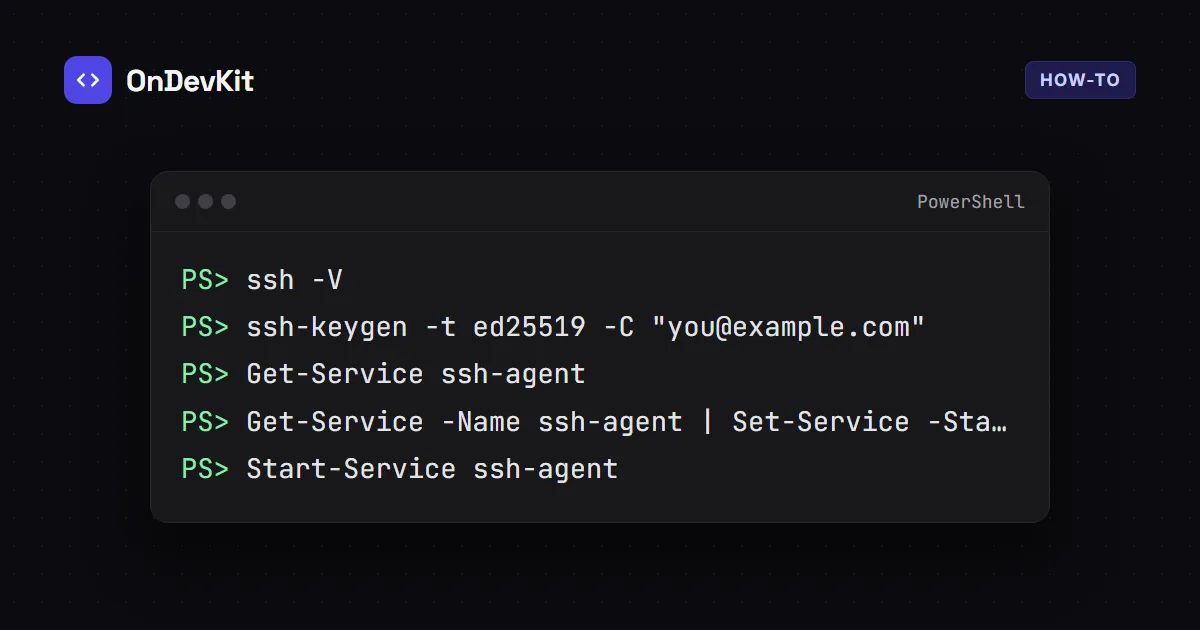
ssh -VYou should see a version, for example OpenSSH_for_Windows_9.5p2, LibreSSL 3.8.2. If you get "not recognized", open Settings → System → Optional features, then add OpenSSH Client.
Step 2: Create the key
ssh-keygen -t ed25519 -C "you@example.com"Use the email address on your GitHub account. Press Enter to accept the default location (C:\Users\YOU\.ssh\id_ed25519). When asked, type a passphrase. It protects the key if someone copies the file, and the agent in Step 3 means you'll rarely type it.
This creates two files:
id_ed25519      ← private key: never share this
id_ed25519.pub ← public key: this goes to GitHubStep 3: Turn on the ssh-agent service
On a fresh Windows install the agent is disabled. Check it:
Get-Service ssh-agentIf StartType is Disabled, open PowerShell as administrator and run:
Get-Service -Name ssh-agent | Set-Service -StartupType Manual
Start-Service ssh-agent
Then, in a normal (not admin) PowerShell window, add your key:
ssh-add $HOME\.ssh\id_ed25519Type your passphrase once. The agent remembers the key from now on.
Step 4: Copy the public key
Get-Content $HOME\.ssh\id_ed25519.pub | Set-ClipboardIt starts with ssh-ed25519 and ends with your email. Make sure you copied the .pub file, never the private key.
Step 5: Add the GitHub SSH key to your account
- On GitHub, click your profile picture, then Settings.
- In the sidebar, open SSH and GPG keys and click New SSH key.
- Give it a title such as
Home PC, keep Authentication Key, paste the key, and click Add SSH key.
Step 6: Test the connection
ssh -T git@github.comThe first time, SSH asks you to confirm GitHub's fingerprint. GitHub publishes it as SHA256:+DiY3wvvV6TuJJhbpZisF/zLDA0zPMSvHdkr4UvCOqU for ED25519 (GitHub docs). If it matches, type yes. Success looks like this:
Hi USERNAME! You've successfully authenticated, but GitHub does not provide shell access.Step 7: Make Git use the Windows SSH
Here's the trap most guides skip. Git for Windows ships its own SSH program (C:\Program Files\Git\usr\bin\ssh.exe). That copy can't see the Windows ssh-agent, so git push may keep asking for your passphrase. Tell Git to use the Windows one:
git config --global core.sshCommand "C:/Windows/System32/OpenSSH/ssh.exe"
Switch an existing repo from HTTPS to SSH
If you cloned with an https:// address, change the remote to SSH:
git remote set-url origin git@github.com:USERNAME/REPO.git
git remote -v
New clones: copy the SSH address from GitHub's green Code button.

Why does GitHub say "Permission denied (publickey)"?
GitHub didn't receive a key it recognises. Check, in order:
ssh-add -llists your key. If it says the agent has no identities, runssh-addagain (Step 3).- The key you added to GitHub is the .pub file from this PC.
- The remote uses SSH:
git remote -vshould showgit@github.com:, nothttps://.
Next steps
With SSH working, you can push without tokens. If a project you clone won't start because a port is busy, see how to fix EADDRINUSE. Using an AI coding agent on the repo? Give it clear rules with an AGENTS.md file.